Guides & FAQ
How to use PlaylistGrab, step by step
Every guide uses real screenshots of the app. The orange circles and numbers show exactly where to click. Tap any picture to see it bigger.
01How do I download one song or video?Pick a folder, a format and a quality, then paste the link.
-
Choose where to save
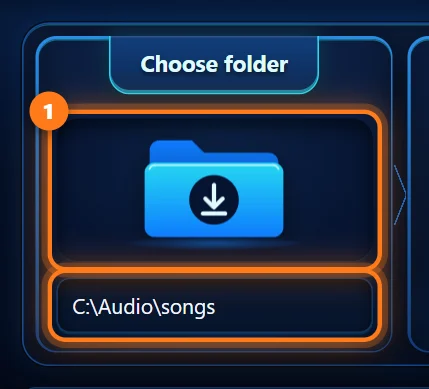
Press the folder button under Choose folder and pick a folder. The path below the button shows where your files will go.
-
Choose the format and quality
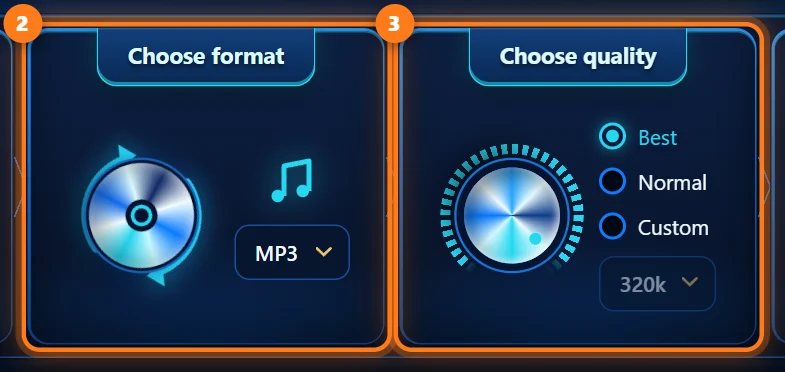
Under Choose format pick MP3 for music or MP4 for video. Under Choose quality pick Best, Normal or Custom.
Not sure? Leave it on Best.
-
Paste the link and download
Copy the video link from your browser (the Share → Copy button or Ctrl+C on the address bar). Paste it into the long box and press Search / Download.

-
Faster: one button
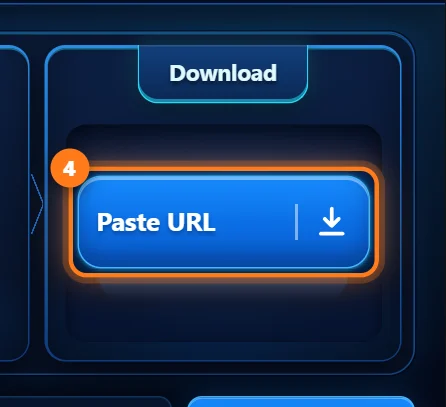
After copying a link you can also just press Paste URL. PlaylistGrab takes the link from your clipboard and starts right away.
-
Watch the progress
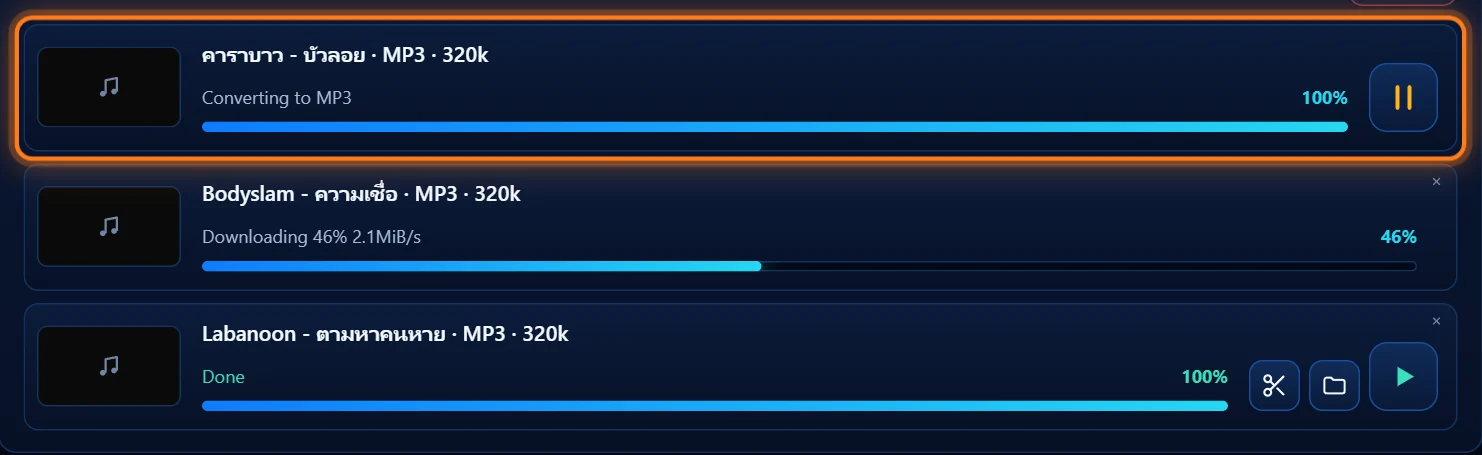
Each file gets its own row with a progress bar and percentage. You can pause, or close the row with × when it is done.
02How do I download a whole playlist?PROPaste the playlist link, untick what you don't want, download the rest.
-
Paste the playlist link
Copy the link of the playlist page, paste it into the box and press Search / Download.
If the link opens one clip inside a playlist, PlaylistGrab asks whether you want only that clip or the whole playlist.

-
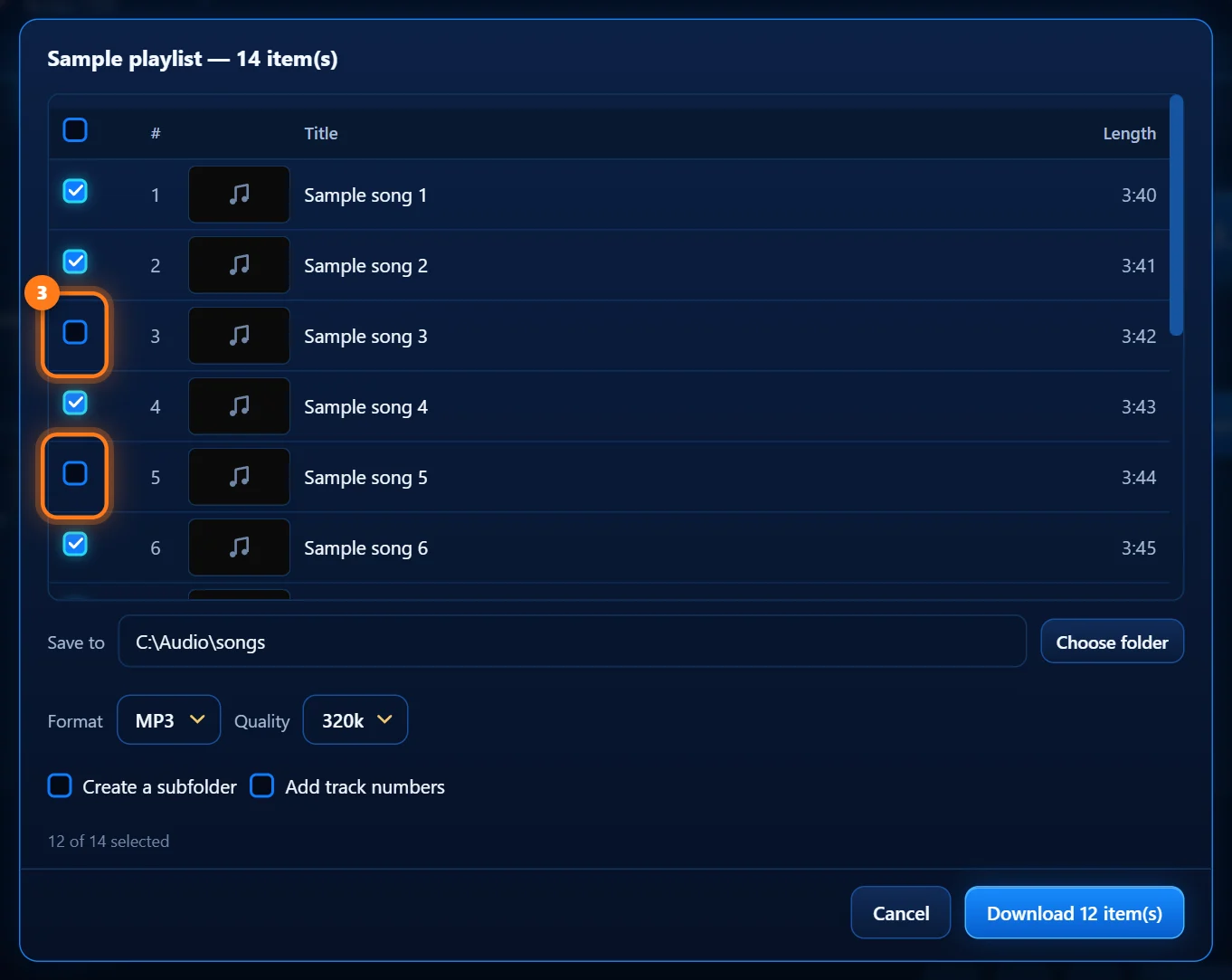
Untick the songs you don't want
Every clip is listed and ticked. Click a row to untick it. The box at the top ticks or unticks everything at once.
-
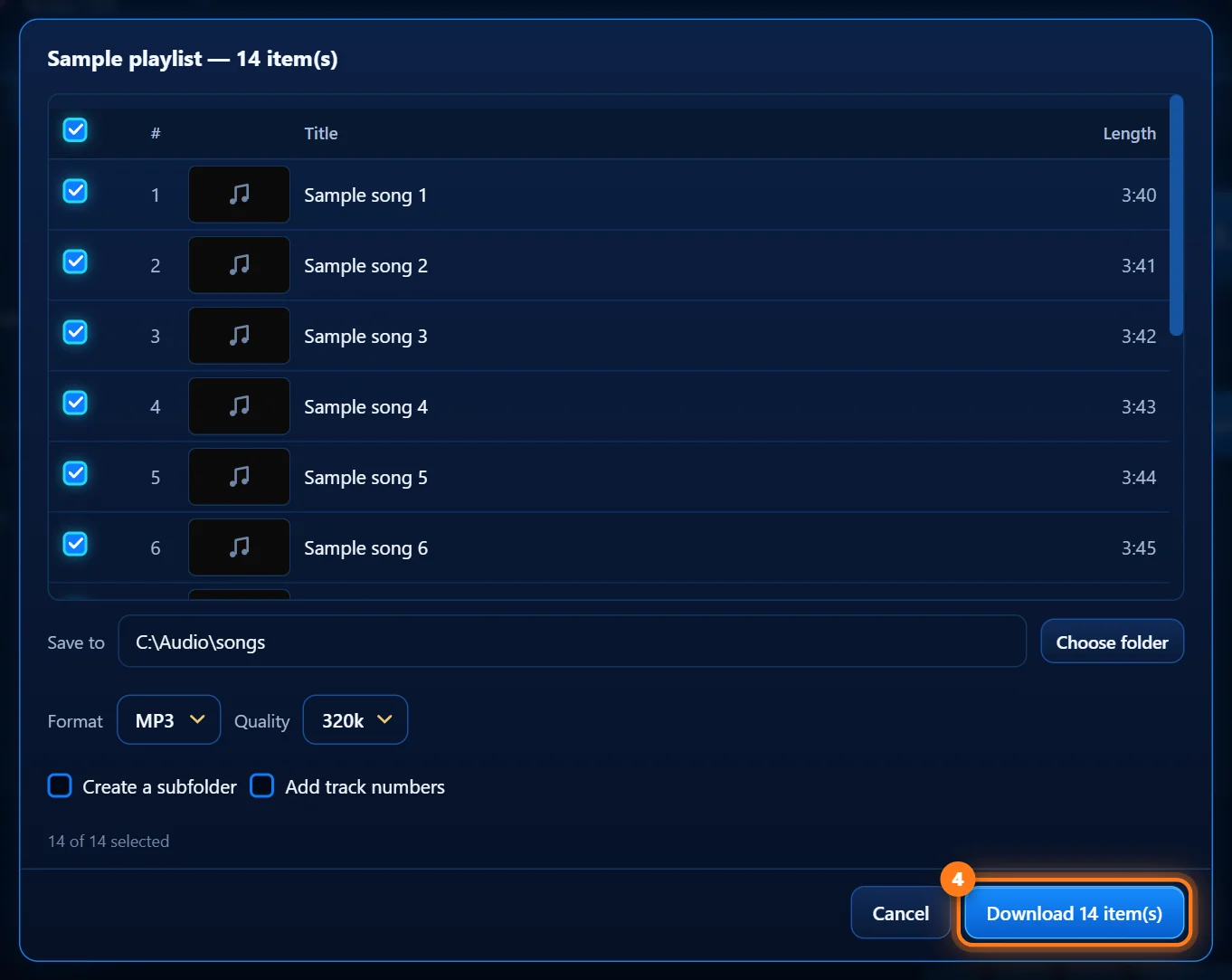
Press Download
Check the folder, format and quality, then press Download … item(s).
Create a subfolder puts the playlist in its own folder. Add track numbers keeps the playlist order — handy for car USB sticks.
03I don't have a link. Can I search by name?PROType the song name instead of a link.
-
Type the song or video name
Type the name (and artist) into the long box and press Search / Download.

-
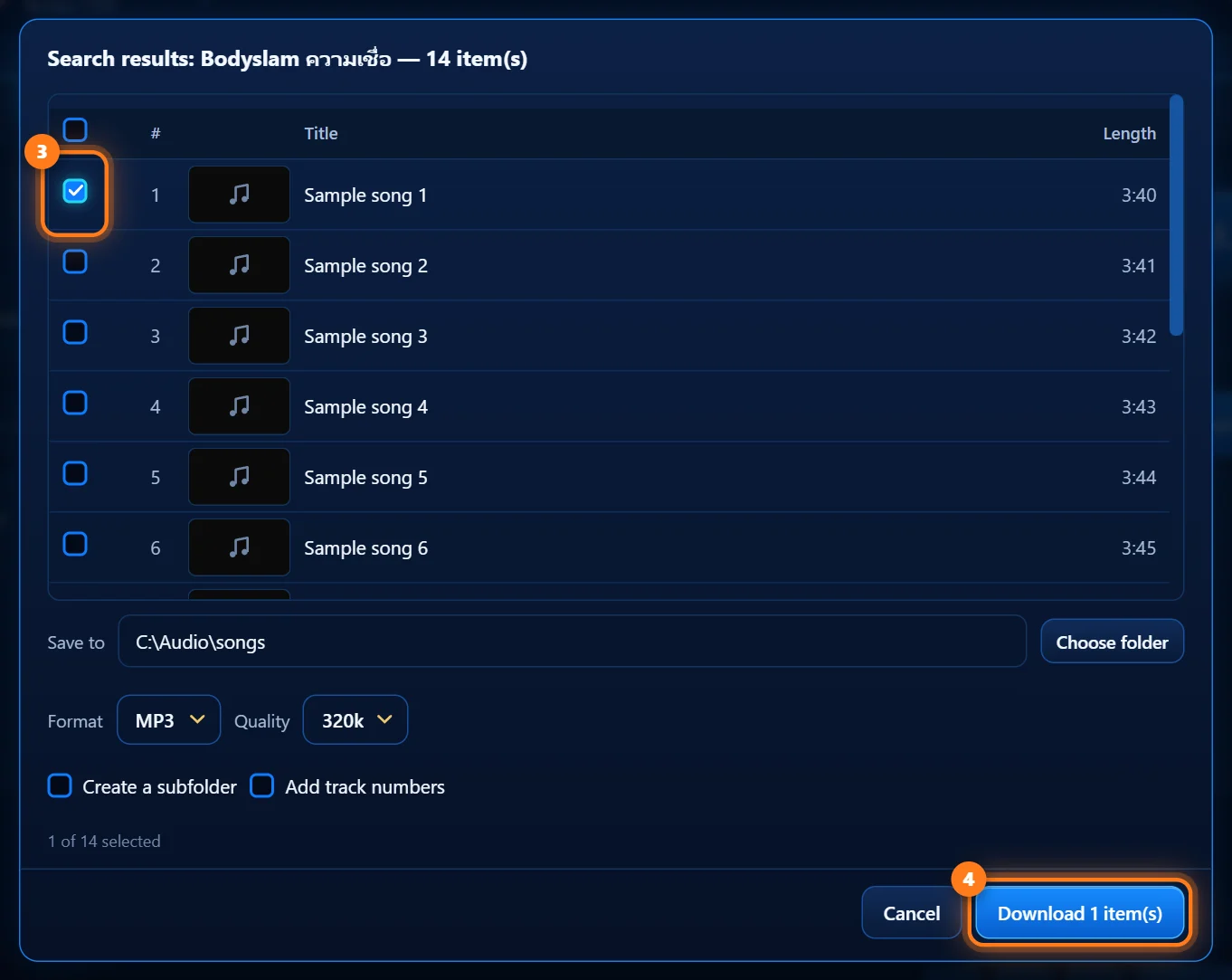
Tick the results you want
Search results start unticked. Tick the ones you want, then press Download.
04Can PlaylistGrab ask me when I copy a link?Copy a link anywhere, then choose MP3 or MP4 in one click.
-
Open Settings
Press the gear button at the bottom right of the window.
-
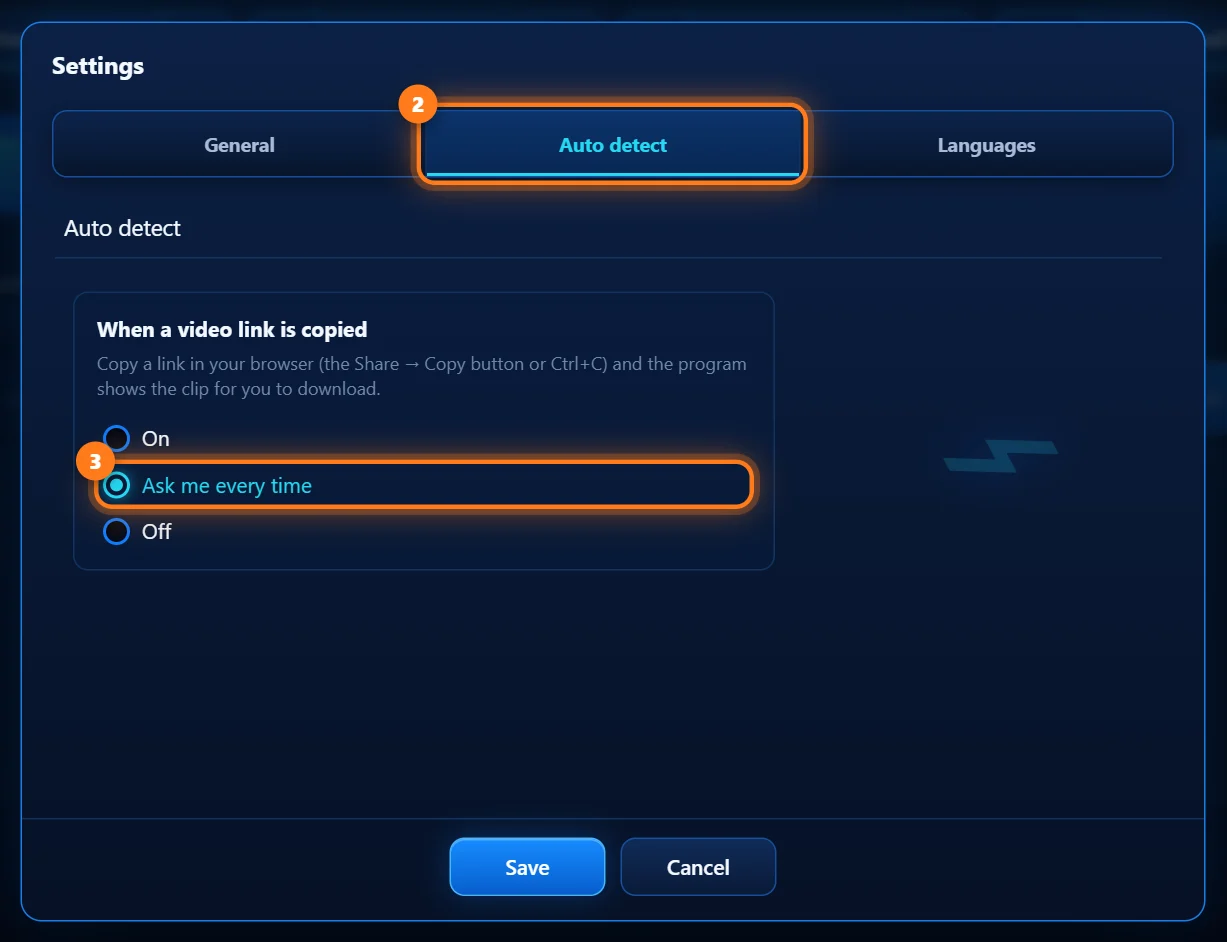
Choose “Ask me every time”
Open the Auto detect tab and pick Ask me every time, then press Save.
On downloads straight away with your last settings (Pro). Off ignores copied links.
-
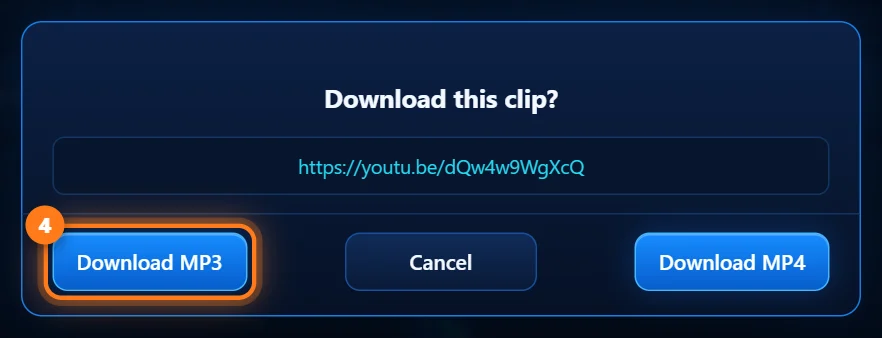
Copy a link and pick a format
Now copy any video link in your browser. PlaylistGrab pops up and asks — press Download MP3 or Download MP4.
05Where are my downloaded files?They are in the folder you chose — one click opens it.
-
Press the folder button on a finished row
When a row says Done, press its folder button. Windows opens the folder with the file selected.
You can also play the song right away with the ▶ button.

06How do I cut a song?PROKeep only the part you want — great for ringtones.
-
Press the scissors on a finished MP3
The scissors button appears on finished MP3 rows.

-
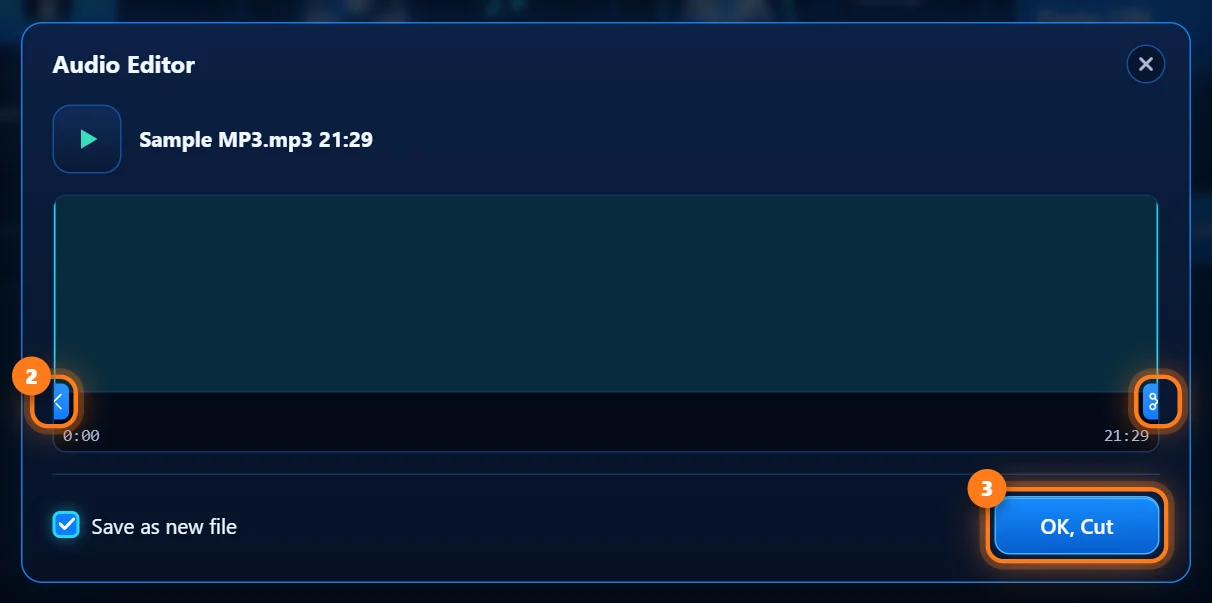
Drag the handles, then cut
Drag the left and right handles to the start and end you want. Press ▶ to listen, then press OK, Cut.
Keep Save as new file ticked so the original stays untouched.
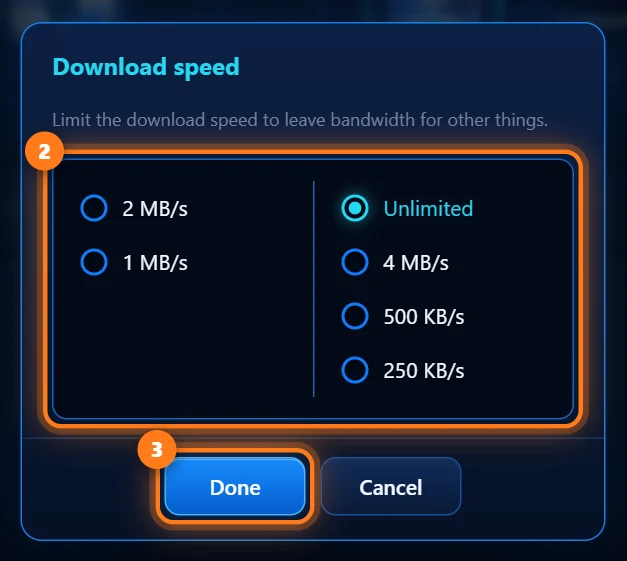
07Can I limit the download speed?Leave bandwidth for video calls, games or other people at home.
-
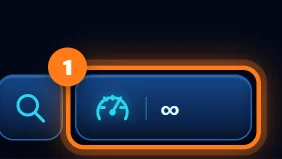
Press the speed button
It is at the bottom right and shows your current limit.
-
Pick a speed and press Done
Choose a limit, or Unlimited for full speed, then press Done.
08How do I change the language?PlaylistGrab speaks more than 20 languages.
-
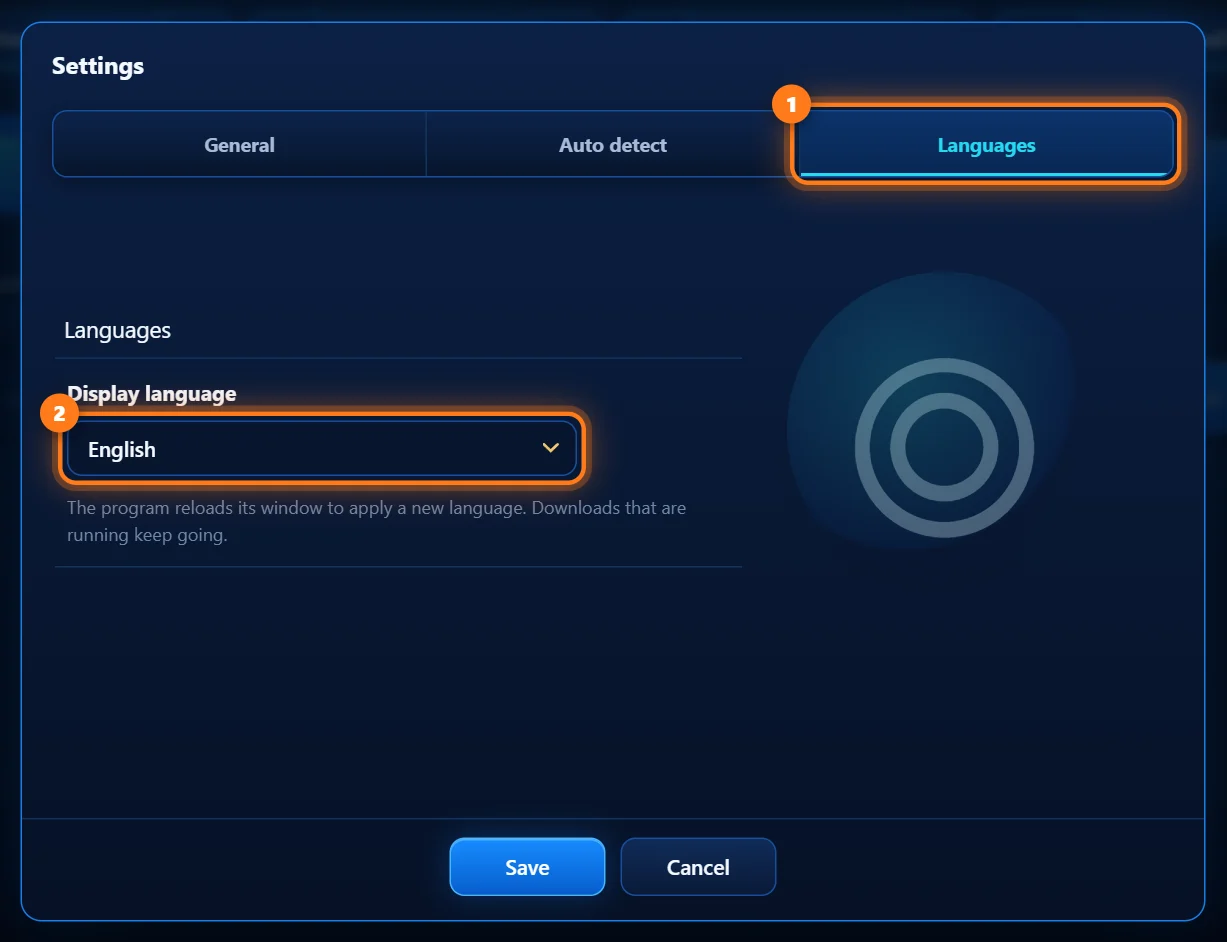
Settings → Languages
Open Settings (the gear button), choose the Languages tab, pick your language and press Save. The window reloads in the new language.
09How do I activate my Pro key?Paste the key from your purchase email. Internet is needed the first time.
-
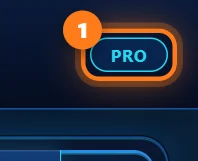
Press the plan button
It is at the top right of the window and shows FREE or PRO.
-
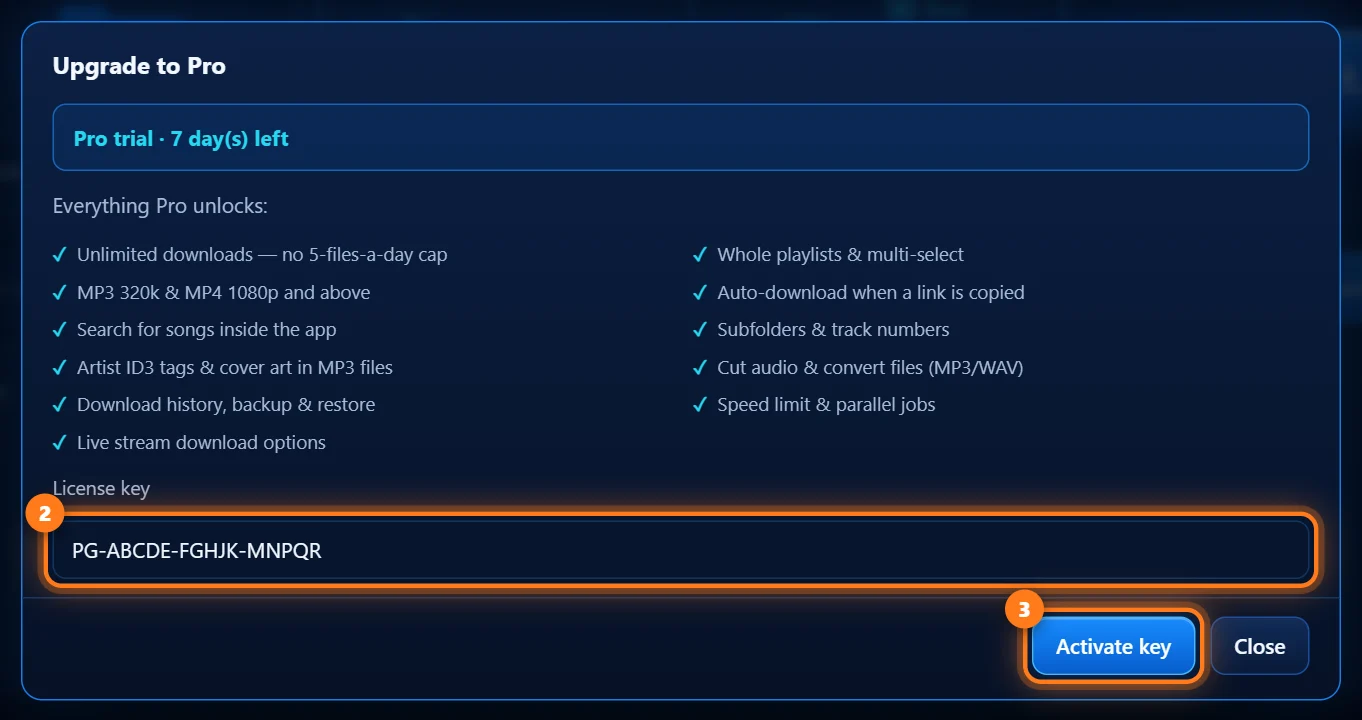
Paste your key and press Activate
Paste the key (it looks like PG-XXXXX-XXXXX-XXXXX) into License key and press Activate key.
A key works on one PC. Moving to a new PC? Email support@playlistgrab.com and we will release the key from the old one.
10A download fails. What can I do?Video sites change often — updating the engine fixes most problems.
-
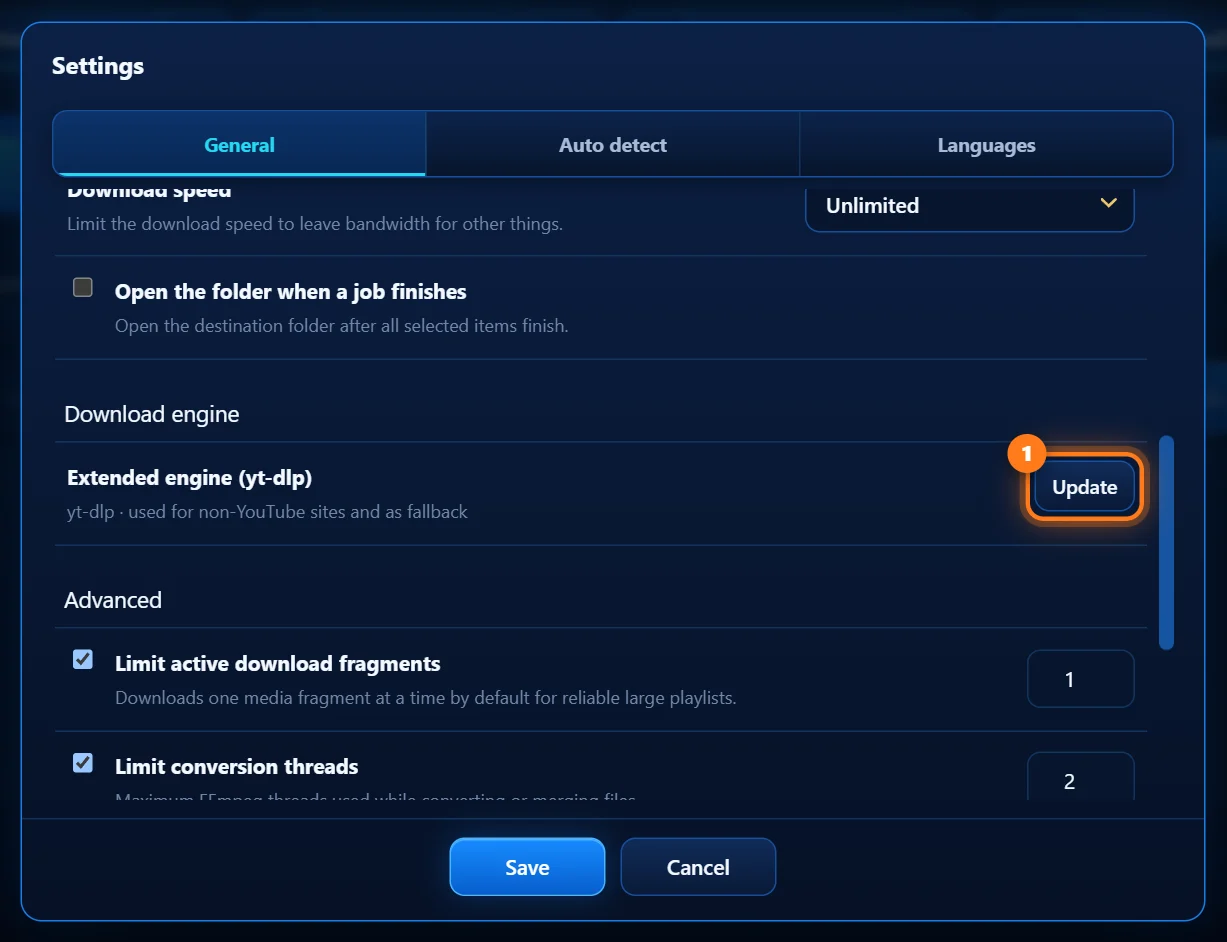
Update the download engine
Open Settings (the gear button). In the General tab, scroll to Download engine and press Update (or Install the first time). Then try the download again.
-
Still not working?
Check your internet connection, make sure the video plays in your browser, and wait a few minutes before trying again. Private, members-only or age-restricted videos may not download.
Still stuck?
Email support@playlistgrab.com with a screenshot of the problem and the link you tried, and we will help you get it working.
Email support →